Open the map without the touchpad
Options is the small button just to the right of the DualSense touchpad. Press it once. In the menu on the left, choose Map, the first entry above Game, and press ×.
When the streets appear, move the cursor to a spot and press × again to set a destination. Press ○ (Circle) to leave the map.
Footage interval reviewed · see build limits below
Map is highlighted above Game on the left. The street map opens a moment later.
HowToDevices · 0:04–0:11 · Full video 0:39
Source & footage context
From HowToDevices’ GTA 6 destination tutorial. The pause-menu selection and map are visible. The clip does not reproduce the reported fault.
Source record ↗ · Checked 2026-11-19
The original creator hosts the recording. If playback is restricted, use the YouTube link.
See Map highlighted in the PS5 pause menu · Set a waypoint or drop a marker
Check what the touchpad is assigned to
Press Options → Settings → Controller. Scroll to DualSense Wireless Controller Features and find Touch Pad Button.
- Camera makes a press cycle the camera view. Choose Map if you want a map shortcut, return to play and click the touchpad once.
- Map is already the map shortcut. If the press still leaves you looking at a blurred scene, use the pause-menu route above.
Footage interval reviewed · see build limits below
Watch the highlighted Touch Pad Button row switch from Map to Camera. For the map shortcut, leave it on Map.
HowToDevices · 0:24–0:31 · Full video 0:42
Source & footage context
PS5 controller settings in launch footage. The game version is not visible in this excerpt.
Source record ↗ · Checked 2026-11-19
The original creator hosts the recording. If playback is restricted, use the YouTube link.
Why does the background blur?
In the footage above, the background briefly blurs as the pause menu appears. The reported problem is getting that blurred view with no map to use. Its cause is still unconfirmed.
One PS5 player described a focus-like effect on the default controls. Changing control schemes didn’t help them, but opening Map from Options did. A PS5 Pro player said the shortcut worked for several hours before it began showing only a blurred background. Restarting the game and console didn’t restore it for that player.
The PS5 player’s follow-up · The independent PS5 Pro report
If Options → Map also leaves the screen blurred, record both attempts and the value beside Touch Pad Button. Include your console model and game version when you contact Rockstar Support.
Watch the steps
Checked on screen · Nov 19, 2026
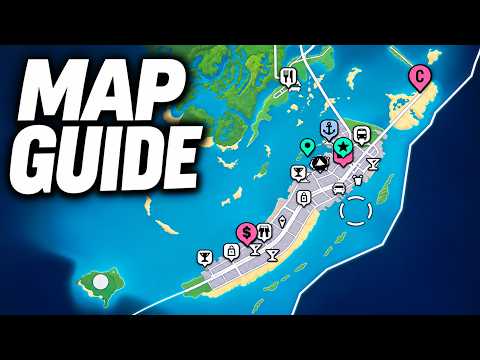 0:14–0:31 · 17 sOpen the PS5 map and choose Set Destination
Luh Haiti opens the map by holding the touchpad. If your shortcut blurs the screen, press Options and select Map. Move the cursor and use Cross for a destination or Square for a marker.
Luh HaitiFull video ↗Credits
“GTA 6 Map Guide: HOW TO OPEN MAP, SET WAYPOINTS, FIND STORES, & MORE! (GTA VI)” by Luh Haiti · Nov 18, 2026 · Launch gameplay with PlayStation prompts. Build number not shown.
Independent creator · no partnership implied